Learning Web Standards with Opera

Web Standards have never been easier to learn. Everything you need
to know is condensed into short, helpful tutorials that inform and
inspire. Opera’s Web Standards Curriculum can help you brush up on
things you know and maybe even teach you something you didn’t.


Opera’s Web Standards Curriculum,
released in association with the Yahoo! Developer Network, is a
complete a course designed to give anyone a solid grounding in web
design/development, including HTML, CSS, design principles and
background theory, and JavaScript basics.


It is completely free to use, accessible, and assumes no previous
knowledge. It already has support from many organizations (including
Yahoo! and the Web Standards Project) and universities. The first 23
articles are currently available, with about 30 more to be published
between now and late September.


Source: Opera Web Standards Curriculum

Amazing Shapes, Abstract and Frames Photoshop Brushes

Amazing Photoshop brushes come from talented designer Paul Willocks and Marielle.
You can find some Line Brushes, Abstract Tech Brushes, Circle Brushes
and a lot more in Paul Willocks Gallery. You can also find some Floral
Brushes, Frames Brushes, Hearts Brushes and Dividers Brushes in
Marielle Gallery. Most of them are licensed under Creative License. You
might want to use them to decorate or design your websites.


Photoshop Brushes Line


Photoshop Brushes 2


Requirements:-

Demo: http://mouritsada-stock.deviantart.com/gallery/#Brush-Packs

Demo: http://paulw.deviantart.com/gallery/#Photoshop-Brushes

License: Creative Commons License

Logo Design Trends Report 2007

There are many different kinds of stunning logos. Some are
aesthetic, some conceptual, and some cultural. It is also becoming
disturbingly clear that logo design has become a public sport. As the
public controls their own media more and more-Tivo-ing this, blogging
that, YouTube-ing and Googling everything else-people are no longer
satisfied to simply consume what is placed before them: They have
opinions they want to share. So when a large corporation reveals its
new identity, there are hundreds of internet sites flinging their
opinions back at it. Even when the village board of Remote votes on a
new logo for its two police cars, citizens take to the streets waving
pitchforks and copies of their own designs. Committeecide seems to be
rampant.


The full 2007 logo design trends report
follows. Whether we are noting social, conceptual or aesthetic trends,
remember that none of them exist in a vacuum or in a single moment in
time. They are results of many trends before them and are developing
taproots as we speak.


2007 Logo Trends


You can also look at more current Logo Design Trends here.


Source: Logo Design Trends Report 2007

Creating a Dynamic Poll with jQuery and PHP

When you combine some neat functionality courtesy of PHP with the cleverness of jQuery you can produce some pretty cool results. NETTUTS has published a tutorial (Creating a Dynamic Poll with jQuery and PHP) for creating a poll using PHP and XHTML, then make use of some jQuery Ajax effects to eliminate the need for a page refresh, and to give it a nice little bit of animation.

Ajax Poll

Requirements:-
Demo: http://nettuts.com/demos/test_poll/
License: License Free

Technorati Tags:

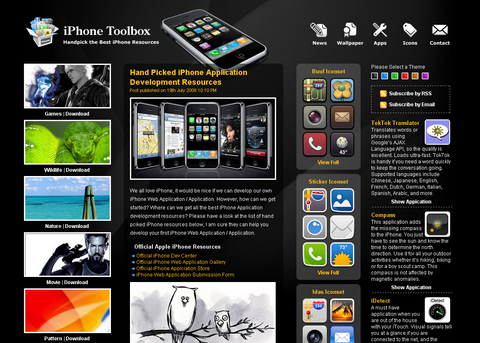
iPhone Application / Web App Development Guide

Apple has sold over one million iPhone 3Gs in first weekend. iPhone 3G looks stunning and runs a lot faster. I am sure most of us would like to have one too. Have you got yours yet? Have you ever think of developing an iPhone Application / iPhone Web App for it? However, how can we get started? Where can we get all the best iPhone Application development resources? You should take a look at the article: Hand Picked iPhone Application Development Resources by iPhone Toolbox.

iPhone Application / Web App Development Guide

If you have an iPhone, you can download free iPhone Wallpapers, iPhone Icons from iPhone Toolbox. Also, you can check out the iPhone news and hand picked iPhone Web Apps as well.

Source: Hand Picked iPhone Application Development Resources

Technorati Tags:

9 Expert CSS Ideas You Should Think Twice About Before Using


Smashing Magazine does an excellent job of providing quality resources for
web developers. Today while checking out Digg, I noticed that they have
a new article entitled 70 Expert Ideas For Better CSS Coding. The article
contains lots of good information on how to improve your CSS, however
there are a number of ideas presented that should be taken with
a grain of salt.


Section 1.1


Idea: Keep a library of helpful CSS classes


This concept really breaks the separation of presentation and content
that we strive for when using CSS classes and writing semantic code. If we have some html:


<div class="floatLeft width100"></div>


We gain NO benefits over the following, except for a few characters:


<div style="float: left; width: 100%;"></div>


Instead, it makes much more sense to create classes based on the content:


<div class="callout"></div>


Then if you have multiple callouts, you can change all of them with a
single CSS rule, as opposed to editing the HTML when you want to change
the float or width.


Section 1.3


Idea: Keep selectors to a minimum


The rationale for this is to reduce the number of selectors needed to
override the rule, and helping keep troubleshooting time down. From
my own experience I have found that using specific selectors more often
helps
with troubleshooting. You’ll first want to start with styling all of
your basic html tags, then create specific styles for the sections that
override the defaults. If you have auxiliary panel that needs styling
for
links inside of an ordered list, don’t use:
.aux_panel a { }


Instead, you will probably find less issues down the road if you use:


.aux_column ul li a { }


This will especially be the case if you add more links to the right column that are not inside of a list.


Idea: Keep CSS hacks to a minimum


This advice really should read: Don’t use CSS hacks.


CSS hacks break over time, see IE7 for an example. Instead, use valid
CSS, and try some different presentation techniques. Most often CSS
hacks have to do with IE. Check out Dean Edwards’ IE7 script for info
on how to make your life easier with IE.


Section 1.5


Idea: To work with EMs like with pxs, set font-size on the body-tag with 62.5%


This is a little dangerous since EMs cascade and pixels don’t. Say I have the following CSS:


html {
font-size: 62.5%;
}

body {
font-size: 1.3em;
}

h1 {
font-size: 1.5em;
}


As a result my h1s would have an equivalent font-size
of 19.5px, not 15px.


Idea: Use universal character set for encoding.


UTF-8 is a wonderful character set, don’t get me wrong, but you have
to know more than just including the following inside of your head tag:


<meta http-equiv="content-type" content="text/ html;charset=utf-8" />


If you present your files are UTF-8, but your editor
is saving them as ISO-8859-1, Windows-1252 or Mac OS Roman you could
have issues for characters above between 129 and 256. Better advice is
to make sure you include a meta tag with your actual character set.


Section 2.2


Idea: Use the power of selectors


These selectors are awesome, but be very careful! None of them are
supported by IE6 unless you use Dean Edwards’ IE7 script.
Hopefully this will save someone from developing a whole project in
Firefox, Opera or Safari just to see it get destroyed by IE6.


Section 2.3


Idea: You can mark external links automatically.


Marking external links is great, but really think twice before using
content:. CSS is about presentation and really shouldn’t
be adding content to your pages. Instead, add a background image with a
little right
padding.


Idea: You can remove dotted links with outline: none;


This seems like a great idea, especially if you use negative text-indent
values. The real issue is with accessibility. As soon as you hide the outline,
people with keyboards are gonna have no idea what link they have tabbed to.
This might be a good time to look and see if a different technique than
negative text-indent might solve your issue.


Section 2.5


Idea: You can force IE to apply transparence to PNGs.

Idea: You can define min-width and max-width in IE.


Don’t code these into your style sheet. CSS hacks will degrade
over time and it makes your CSS all messy. Instead I would recommend
using Dean Edwards’ IE7 script to fix issues with only IE, leaving your
css nice, valid and clean. The IE7 script also adds support for
all kinds of good, usable CSS. Check it out!

70 Expert Ideas For Better CSS Coding

CSS isn’t always easy to deal with. Depending on
your skills and your experience, CSS coding can sometimes become a
nightmare, particularly if you aren’t sure which selectors are actually
being applied to document elements. An easy way to minimize the
complexity of the code is as useful as not-so-well-known CSS attributes
and properties you can use to create a semantically correct markup.


We’ve taken a close look at some of the most useful CSS tricks,
tips, ideas, methods, techniques and coding solutions and listed them
below. We also included some basic techniques you can probably use in
every project you are developing, but which are hard to find once you
need them.


And what has come out of it is an overview of over 70 expert CSS ideas
which can improve your efficiency of CSS coding. You might be willing
to check out the list of references and related articles in the end of
this post.


We’d like to express sincere gratitude to all designers
who shared their ideas, techniques, methods, knowledge and experience
with their readers. Thank you, we, coders, designers, developers,
information architects - you name it - really appreciate it.


1.1. Workflow: Getting Started


  • After you have a design, start with a blank page of content.
    “Include your headers, your navigation, a sample of the content, and
    your footer. Then start adding your html markup. Then start adding your
    CSS. It works out much better.” [CSSing]
  • Use a master stylesheet. “One of the most common
    mistakes I see beginners and intermediates fall victim to when it comes
    to CSS is not removing the default browser styling. This leads to
    inconsistencies in the appearance of your design across browsers, and
    ultimately leaves a lot of designers blaming the browser. It is a
    misplaced blame, of course. Before you do anything else when coding a
    website, you should reset the styling.” [Master Stylesheet: The Most Useful CSS Technique], [Ryan Parr]
    master.css
    @import url(”reset.css”);
    @import url(”global.css”);

    @import url(”flash.css”);
    @import url(”structure.css”);

    <style type="text/css" media="Screen">
    /**/@import url("css/master.css");/**/
    </style>

  • Reset your CSS-styles first. “You can often
    eliminate the need to specify a value for a property by taking
    advantage of that property’s default value. Some people like doing a Global white space reset by zeroing both margin and padding for all elements at the top of their stylesheets. [Roger Johansson]
  • Keep a library of helpful CSS classes. Useful for
    debugging, but should be avoided in the release version (separate
    markup and presentation). Since you can use multiple class names (i.e. <p class="floatLeft alignLeft width75">...</p>), make use of them debugging your markup. (updated) [Richard K. Miller]
    CSS:
    .width100 { width: 100%; }
    .width75 { width: 75%; }
    .width50 { width: 50%; }
    .floatLeft { float: left; }
    .floatRight { float: right; }
    .alignLeft { text-align: left; }
    .alignRight { text-align: right; }

  • Eric Meyer’s Global Reset, Christian Montoya’s initial CSS file, Mike Rundle’s initial CSS file, Ping Mag’s initial CSS file.

1.2. Organize your CSS-code


  • Organize your CSS-styles, using master style sheets.
    “Organizing your CSS helps with future maintainability of the site.
    Start with a master style sheet. Within this style sheet import your reset.css, global.css, flash.css (if needed) and structure.css and on occasion a typography style sheet. Here is an example of a “master” style sheet and how it is embedded in the document:”
    h2 { }
    #snapshot_box h2 {
    padding: 0 0 6px 0;
    font: bold 14px/14px "Verdana", sans-serif; }
    #main_side h2 {
    color: #444;
    font: bold 14px/14px "Verdana", sans-serif; }
    .sidetagselection h2 {
    color: #fff;
    font: bold 14px/14px "Verdana", sans-serif; }

  • Organize your CSS-styles, using flags. “Divide
    your stylesheet into specific sections: i.e. Global Styles – (body,
    paragraphs, lists, etc), Header, Page Structure, Headings, Text Styles,
    Navigation, Forms, Comments, Extras. [5 Tips for Organizing Your CSS]
    /* -----------------------------------*/
    /* ---------->>> GLOBAL <<<-----------*/
    /* -----------------------------------*/

  • Organize your CSS-styles, making a table of contents.
    At the top of your CSS document, write out a table of contents. For
    example, you could outline the different areas that your CSS document
    is styling (header, main, footer etc). Then, use a large, obvious
    section break to separate the areas. [5 Steps to CSS Heaven]
  • Organize your CSS-styles, ordering properties alphabetically.
    “I don’t know where I got the idea, but I have been alphabetizing my
    CSS properties for months now, and believe it or not, it makes specific
    properties much easier to find.” [Christian Montoya]
    body {
    background: #fdfdfd;
    color: #333;
    font-size: 1em;
    line-height: 1.4;
    margin: 0;
    padding: 0;
    }

  • Separate code into blocks.. “This might be common
    sense to some of you but sometimes I look at CSS and it’s not broken
    down into “sections.” It’s easy to do an it makes working with code
    weeks, months, or years later much easier. You’ll have an easier time
    finding classes and elements that you need to change. Examples: /* Structure */, /* Typography */ etc.” [CSS Tips and Tricks]
  • Hook, line, and sinker. Once you have your CSS and
    sections in place start considering where your selector “hooks” will
    live by using structural hooks in your mark up. This is your saving
    grace for future editing and maintenance of the site. This will also
    give you strength in your document.” [Ryan Parr]
  • Break your style sheet in separate blocks. “I
    break down my style sheet into three separate blocks. The first is
    straight element declarations. Change the body, some links styles, some
    header styles, reset margins and padding on forms, and so on. […] After
    element declarations, I have my class declarations; things like classes
    for an error message or a callout would go here. [..] I start by
    declaring my main containers and then any styles for elements within
    those containers are indented. At a quick glance, I can see how my page
    is broken down and makes it easier to know where to look for things.
    I’ll also declare containers even if they don’t have any rules.” [Jonathan Snook]

1.3. Workflow: Handling IDs, Classes, Selectors, Properties


  • Keep containers to a minimum. “Save your document
    from structural bloat. New developers will use many div’s similar to
    table cells to achieve layout. Take advantage of the many structural
    elements to achieve layout. Do not add more div’s. Consider all options
    before adding additional wrappers (div’s) to achieve an effect when
    using a little nifty CSS can get you that same desired effect.” [Ryan Parr]
  • Keep properties to a minimum. “Work smarter, not
    harder with CSS. Under this rule, there are a number of subrules: if
    there isn’t a point to adding a CSS property, don’t add it; if you’re
    not sure why you’re adding a CSS property, don’t add; and if you feel
    like you’ve added the same property in lots of places, figure out how
    to add it in only one place.” [CSSing]
  • Keep selectors to a minimum. “Avoid unnecessary
    selectors. Using less selectors will mean less selectors will be needed
    to override any particular style — that means it’s easier to
    troubleshoot.” [Jonathan Snook]
  • Keep CSS hacks to a minimum. “Don’t use hacks
    unless its a known and documented bug. This is an important point as I
    too often see hacks employed to fix things that aren’t really broken in
    the first place. If you find that you are looking for a hack to fix a
    certain issue in your design then first do some research (Google is
    your friend here) and try to identify the issue you are having problems
    with. [10 Quick Tips for an easier CSS life]
  • Use CSS Constants for faster development. “The
    concept of constants – fixed values that can be used through your code
    [is useful]. [..] One way to get round the lack of constants in CSS is
    to create some definitions at the top of your CSS file in comments, to
    define ‘constants’. A common use for this is to create a ‘color
    glossary’. This means that you have a quick reference to the colors
    used in the site to avoid using alternates by mistake and, if you need
    to change the colors, you have a quick list to go down and do a search
    and replace.” [Rachel Andrew]
    # /*
    # Dark grey (text): #333333
    # Dark Blue (headings, links) #000066
    # Mid Blue (header) #333399
    # Light blue (top navigation) #CCCCFF
    # Mid grey: #666666
    # */

  • Use a common naming system. Having a naming system
    for id’s and classes saves you a lot of time when looking for bugs, or
    updating your document. Especially in large CSS documents, things can
    get a big confusing quickly if your names are all different. I
    recommend using a parent_child pattern. [10 CSS Tips]
  • Name your classes and IDs properly, according to their semantics.
    “We want to avoid names that imply presentational aspects. Otherwise,
    if we name something right-col, it’s entirely possible that the CSS
    would change and our “right-col” would end up actually being displayed
    on the left side of our page. That could lead to some confusion in the
    future, so it’s best that we avoid these types of presentational naming
    schemes. [Garrett Dimon]
  • Group selectors with common CSS declarations.
    “Group selectors. When several element types, classes, or id:s share
    some properties, you can group the selectors to avoid specifying the
    same properties several times. This will save space – potentially lots
    of it.” [Roger Johansson]
  • Isolate single properties that you are likely to reuse a lot.
    “If you find yourself using a single property a lot, isolate it to save
    yourself repeating it over and over again and also enabling you to
    change the display of all parts of the site that use it.” [5 Steps to CSS Heaven]
  • Move ids and class naming as far up the document tree as you can. Leverage contextual selectors
    as much as possible. Don’t be afraid to be verbose in your selectors.
    Longer selectors can make css documents easier to read while also
    cutting down the chances of developing class- or divitis. [Chric Casciano]
  • Learn to exploit the cascading nature of CSS. “Say
    you have two similar boxes on your website with only minor differences
    - you could write out CSS to style each box, or you could write CSS to
    style both at the same time, then add extra properties below to make
    one look different.” [5 Steps to CSS heaven]
  • Use Your Utility Tags: <small>, <em> and <strong>.
    “Many times you’ll have a section in your design that calls for various
    typographical weights/looks all on the same line, or very close to each
    other. drop in random divs and classes because I feel they’re not
    semantic and defeat the purpose of your nice XHTML everywhere else.”
    Instead, use semantic tags. [Mike Rundle’s 5 CSS Tips]

1.4. Workflow: Use shorthand notation


  • Shorten hexadecimal colour notation. “In CSS, when
    you use hexadecimal colour notation and a colour is made up of three
    pairs of hexadecimal digits, you can write it in a more efficient way
    by omitting every second digit: #000 is the same as #000000, #369 is the same as #336699 [Roger Johansson]
  • Define pseudo classes for links in the LoVe/HAte-order:
    Link, Visited, Hover, Active. “To ensure that you see your various link
    styles, you’re best off putting your styles in the order
    “link-visited-hover-active”, or “LVHA” for short. If you’re concerned
    about focus styles, they may go at the end– but wait until you’ve read
    this explanation before you decide.” [Eric Meyer]
    a:link { color: blue; }
    a:visited { color: purple; }
    a:hover { color: purple; }
    a:active { color: red; }

  • Define element’s margin, padding or border in TRouBLed-order:
    Top, Right, Bottom, Left. “When using shorthand to specify an element’s
    margin, padding or border, do it clockwise from the top: Top, Right,
    Bottom, Left.” [Roger Johansson]
  • You can use shorthand properties. “Using shorthand for margin, padding and border properties can save a lot of space.
    CSS:
    margin: top right bottom left;
    margin: 1em 0 2em 0.5em;
    (margin-top: 1em; margin-right: 0; margin-bottom: 2em; margin-left: 0.5em;)

    CSS:
    border: width style color;
    border: 1px solid #000;

    CSS:
    background: color image repeat attachment position;
    background: #f00 url(background.gif) no-repeat fixed 0 0;

    CSS:
    font: font-style (italic/normal) font-variant (small-caps) font-weight font-size/line-height font-family;
    font: italic small-caps bold 1em/140% “Lucida Grande”,sans-serif;


1.5. Workflow: Setting Up Typography


  • To work with EMs like with pxs, set font-size on the body-tag with 62.5%. Default-value of the font-size
    is 16px; applying the rule, you’ll get one Em standing for roughly ten
    pixels (16 x 62.5% = 10). “I tend to put a font-size on the body tag
    with value: 62.5%. This allows you to use EMs to specify sizes while
    thinking in PX terms, e.g. 1.3em is approximately 1.3px. ” [Jonathan Snook]
  • Use universal character set for encoding. “[..]
    The answer is to use a single universal character set that’s able to
    cover most eventualities. Luckily one exists: UTF-8, which is based on
    Unicode. Unicode is an industry standard that’s designed to enable text
    and symbols from all languages to be consistently represented and
    manipulated by computers. UTF- 8 should be included in your web page’s
    head like this. [20 pro tips]
    <meta http-equiv="content-type" content="text/ html;charset=utf-8" />

  • You can change capitalisation using CSS. If you
    need something written in capitals, such as a headline, rather than
    rewriting the copy, let CSS do the donkey work. The following code will
    transform all text with an h1 attribute into all capitals, regardless
    of format”. [20 pro tips]
    h1 {
    text-transform: uppercase;
    }

  • You can display text in small-caps automatically. The font-variant
    property is used to display text in a small-caps font, which means that
    all the lower case letters are converted to uppercase letters, but all
    the letters in the small-caps font have a smaller font-size compared to
    the rest of the text.
    h1 {
    font-variant: small-caps;
    }

  • Cover all the bases - define generic font-families.
    “When we declare a specific font to be used within our design, we are
    doing so in the hope that the user will have that font installed on
    their system. If they don’t have the font on their system, then they
    won’t see it, simple as that. What we need to do is reference fonts
    that the user will likely have on their machine, such as the ones in
    the font-family property below. It is important that we finish the list
    with a generic font type. [Getting into good coding habits]
    p {
    font-family: Arial, Verdana, Helvetica, sans-serif;
    }

  • Use 1.4em - 1.6em for line-height.line-height:1.4
    for readable lines, reasonable line-lengths that avoid lines much
    longer than 10 words, and colors that provide contrast without being too
    far apart. For example, pure black on pure white is often too strong
    for bright CRT displays, so I try to go with an off-white (#fafafa is a good one) and a dark gray (#333333, another good one).” [Christian Montoya]
  • Set 100.01% for the html-element.
    This odd 100.01% value for the font size compensates for several
    browser bugs. First, setting a default body font size in percent
    (instead of em) eliminates an IE/Win problem with growing or shrinking
    fonts out of proportion if they are later set in ems in other elements.
    Additionally, some versions of Opera will draw a default font-size of
    100% too small compared to other browsers. Safari, on the other hand,
    has a problem with a font-size of 101%. The current “best” suggestion
    is to use the 100.01% value for this property.” [CSS: Getting into good habits]

1.6. Workflow: Debugging


  • Add borders to identify containers. “Use plenty of test styles like extra borders or background colors when building your documents or debugging layout issues. div { border:1px red dashed; } works like a charm. There are also bookmarklets that apply borders and do other things for you.” You can also use * { border: 1px solid #ff0000; }. [Chric Casciano]. Adding a border to specific elements can help identify overlap and extra white space that might not otherwise be obvious. [CSS Crib Sheet]
    * { border: 1px solid #f00; }

  • Check for closed elements first when debugging.
    “If you ever get frustrated because it seemed like you changed one
    minor thing, only to have your beautiful holy-grail layout break, it
    might be because of an unclosed element. [10 CSS Tips]

2.1. Technical Tips: IDs, Classes


  • 1 ID per page, many classes per page. “Check your
    IDs: Only one element in a document can have a certain value for the id
    attribute, while any number of elements can share the same class name.
    [..] Class and id names can only consist of the characters [A-Za-z0-9]
    and hyphen (-), and they cannot start with a hyphen or a digit (see
    CSS2 syntax and basic data types).” [Roger Johansson]
  • Element names in selectors are case sensitive.
    “Remember case sensitivity. When CSS is used with XHTML, element names
    in selectors are case sensitive. To avoid getting caught by this I
    recommend always using lowercase for element names in CSS selectors.
    Values of the class and id attributes are case sensitive in both HTML
    and XHTML, so avoid mixed case for class and id names.” [Roger Johansson]
  • CSS classes and IDs must be valid. “I.e. beginning with a letter, not a number or an underscore. IDs must be unique. Their names should be generic, describe functionality rather than appearance.” [CSS Best Practices]
  • You can assign multiple class names to a given element.
    “You can assign multiple class names to an element. This allows you to
    write several rules that define different properties, and only apply
    them as needed.” [Roger Johansson]

2.2. Technical Tips: Use the power of selectors


Roger Johansson has written an extremely useful series of articles about CSS 2.1 Selectors. These articles are highly recommended
to read - some useful aspects can be found in the list below. Note that
selectors ‘>’ and ‘+’ aren’t supported in IE6 and earlier versions
of Internet Explorer (updated).


  • You can use child selectors. “A child selector
    targets an immediate child of a certain element. A child selector
    consists of two or more selectors separated by a greater than sign,
    “>”. The parent goes to the left of the “>”, and whitespace is
    allowed around the combinator. This rule will affect all strong
    elements that are children of a div element. [Roger Johansson]
    div > strong { color:#f00; }

  • You can use adjacent sibling selectors. An
    adjacent sibling selector is made up of two simple selectors separated
    by a plus sign, “+”. Whitespace is allowed around the adjacent sibling
    combinator. The selector matches an element which is the next sibling
    to the first element. The elements must have the same parent and the
    first element must immediately precede the second element. [Roger Johansson]
    p + p { color:#f00; }

  • You can use attribute selectors. Attribute
    selectors match elements based on the presence or value of attributes.
    There are four ways for an attribute selector to match:
    [att]
    Matches elements that have an att attribute, regardless of its value.
    [att=val]
    Matches elements that have an att attribute with a value of exactly “val”.
    [att~=val]
    Matches elements whose att attribute value is a space-separated list that contains “val”. In this case “val” cannot contain spaces.
    [att|=val]
    Matches elements whose att attribute value is a hyphen-separated list that begins with “val”. The main use for this is to match language subcodes specified by the lang attribute (xml:lang in XHTML), e.g. “en”, “en-us”, “en-gb”, etc.

  • The selector in the following rule matches all p elements that have a title attribute, regardless of which value it has:
    p[title] { color:#f00; }

  • The selector matches all div elements that have a class attribute with the value error:
    div[class=error] { color:#f00; }

  • Multiple attribute selectors can be used in the same selector. This
    makes it possible to match against several different attributes for the
    same element. The following rule would apply to all blockquote elements
    that have a class attribute whose value is exactly “quote”, and a cite
    attribute (regardless of its value):
    blockquote[class=quote][cite] { color:#f00; }

  • You should use descendant selectors. “Descendant
    selectors can help you eliminate many class attributes from your markup
    and make your CSS selectors much more efficient. ” [Roger Johansson]

2.3. Technical Tips: Styling Links


  • Be careful when styling links if you’re using anchors. “If you use a classic anchor in your code (<a name="anchor">) you’ll notice it picks up :hover and :active pseudo-classes. To avoid this, you’ll need to either use id for anchors instead, or style with a slightly more arcane syntax: :link:hover, :link:active” [Dave Shea]
  • Define relationships for links. “The rel attribute is supposed to indicate a semantic link relationship from one resource to another.
    a[rel~="nofollow"]::after {
    content: "2620";
    color: #933;
    font-size: x-small;
    }
    a[rel~="tag"]::after {
    content: url(http://www.technorati.com/favicon.ico);
    }

  • “These make use of the attribute selector for space separated lists
    of values. Any a element with a relationship containing those values
    will be matched. Links with the nofollow relationship will be followed
    by a dark red skull and crossbones (?) and those with the tag
    relationship will be followed by the Technocrati icon.” [Handy CSS]
  • You can mark external links automatically. Many people make use of the non-standard rel="external"
    relationship to indicate a link to an external site. However, adding
    that to each and every link is time consuming and and unnecessary. This
    style rule will place an north east arrow after any link on your site
    to an external site. [Handy CSS]
    a[href^="http://"]:not([href*="smashingmagazine.com"])::after {
    content: "2197";
    }

  • You can remove dotted links with outline: none;. To remove dotted links use outline: none;
    a:focus {
    outline: none;
    }


2.4. Technical Tips: CSS-Techniques


  • You can specify body tag ID. “In most cases
    placing an ID in the body tag will allow you manipulate CSS
    presentational items and markup elements by page by page basis. Not
    only will you be able to organize your sections you will be able to
    create multiple CSS presentations without changing your markup from
    template to template or page to page.” [Ryan Parr, Invasion of Body Switchers]
  • You can create columns with equal heights with CSS. Equal Height Technique: a method to make all columns appear to be the same height. But without the need for faux column style background images. Faux Columns: with background images.
  • You can align vertically with CSS. “Say you have a
    navigation menu item whose height is assigned 2em. Solution: specify
    the line height to be the same as the height of the box itself in the
    CSS. In this instance, the box is 2em high, so we would insert
    line-height: 2em into the CSS rule and the text now floats in the
    middle of the box!” [Evolt.org]
  • You can use pseudo-elements and classes to generate content dynamically. Pseudo-classes and pseudo-elements.
    Pseudo-classes and pseudo-elements can be used to format elements based
    on information that is not available in the document tree. For example,
    there is no element that refers to the first line of a paragraph or the
    first letter of an element’s text content. You can use :first-child,
    :hover, :active, :focus, :first-line, :first-letter, :before, :after
    and more.
  • You can set <hr> to separate posts beautifully. “Restyling the horizontal rule (<hr>) with an image can be a beautiful addition to a web page. [CSS: Best Practices]
  • You can use the same navigation (X)HTML-code on every page.
    “Most websites highlight the navigation item of the user’s location in
    the website. But it can be a pain as you’ll need to tweak the HTML code
    behind the navigation for each and every page. So can we have the best
    of both worlds?” [Ten More CSS Tricks you may not know]
    XHTML:
    <ul>
    <li><a href=”#” class=”home”>Home</a></li>
    <li><a href=”#” class=”about”>About us</a></li>

    <li><a href=”#” class=”contact”>Contact us</a></li>
    </ul>

  • Insert an id into the <body> tag.
    The id should be representative of where users are in the site and
    should change when users move to a different site section.
    CSS:
    #home .home, #about .about, #contact .contact
    {
    commands for highlighted navigation go here
    }

  • You can use margin: 0 auto; to horizontally centre the layout. “To horizontally centre an element with CSS, you need to specify the element’s width and horizontal margins.” [Roger Johansson]
    XHTML:
    <div id=”wrap”>
    <!– Your layout goes here –>
    </div>

    CSS:
    #wrap {
    width:760px; /* Change this to the width of your layout */

    margin:0 auto;
    }

  • You can add CSS-styling to RSS-feeds. “You can do
    a lot more with an XSL stylesheet (turn links into clickable links,
    etc), but CSS can make your feed look much less scary for the
    non-technical crowd. [Pete Freitag]
    <?xml version="1.0" ?>
    <?xml-stylesheet type="text/css" href="http://you.com/rss.css" ?>

    ...

  • You can hide CSS from older browsers. “A common way of hiding CSS files from old browsers is to use the @import trick. [Roger Johansson]
    @import "main.css";

  • Always declare margin and padding in block-level elements. [10 CSS Tips]
  • Set a width OR margin and padding. “My rule of
    thumb is, if I set a width, I don’t set margin or padding. Likewise, if
    I’m setting a margin or padding, I don’t set a width. Dealing with the
    box model can be such a pain, especially if you’re dealing with
    percentages. Therefore, I set the width on the containers and then set
    margin and padding on the elements within them. Everything usually
    turns out swimmingly.” [Jonathan Snook]
  • Avoid applying padding/borders and a fixed width to an element.
    “IE5 gets the box model wrong, which really makes a mess of things.
    There are ways around this, but it’s best to side-step the issue by
    applying the padding to the parent element instead of the child that
    gets a fixed-width. [CSS Crib Sheet]
  • Provide print styles. “You can add a print stylesheet in exactly the same way that you would add a regular stylesheet to your page:
    <link rel="stylesheet" type="text/css" href="print.css" media="print">
    or
    <style type=”text/css” media=”print”> @import url(print.css); </style>

  • This ensures that the CSS will only apply to printed output and not
    affect how the page looks on screen. With your new printed stylesheet
    you can ensure you have solid black text on a white background and
    remove extraneous features to maximise readability. More about CSS-based print-Layouts. [20 pro tips]

2.5. Technical Tips: IE Tweaks


  • You can force IE to apply transparence to PNGs.
    “In theory, PNG files do support varied levels of transparency;
    however, an Internet Explorer 6 bug prevents this from working
    cross-browser.” [CSS Tips, Outer-Court.com]
    #regular_logo
    {
    background: url('test.png'); width:150px; height:55px;
    }
    /* */
    * html #regular_logo
    {
    background:none;
    float:left;
    width:150px;
    filter:progid:DXImageTransform.Microsoft.AlphaImageLoader(src='test.png', sizingMethod='scale');
    }
    /* */

  • You can define min-width and max-width in IE. You can use Microsoft’s dynamic expressions to do that. [Ten More CSS Trick you may not know]
    #container
    {
    min-width: 600px;
    max-width: 1200px;
    width:expression(document.body.clientWidth < 600? "600px" : document.body.clientWidth > 1200? "1200px" : "auto");
    }

  • You can use Conditional Comments for IE. “The safest way of taking care of IE/Win is to use conditional comments.
    It feels more future-proof than CSS hacks – is to use Microsoft’s
    proprietary conditional comments. You can use this to give IE/Win a
    separate stylesheet that contains all the rules that are needed to make
    it behave properly. ” [Roger Johansson]
    <!--[if IE]>
    <link rel="stylesheet" type="text/css" href="ie.css" />
    <![endif]-->


The Ten Most Important CSS Tips : Simple Things You Should Know about Cascading Style Sheets

When you're first learning to build a Web site, you often don't
think much about style sheets, as you're too busy learning to tell a
<p> from a <br>. But once you've mastered the basics, CSS
is an obvious place to go to make your pages more user friendly and
manageable. These ten tips will get you up and running with CSS faster
than you might think.

  1. The best way to learn CSS is in a free class.

    Luckily there is one offered on this site.
  2. You can use CSS on more than just span and div tags.
    Make
    sure that you style everything that makes sense in your document, don't
    just limit yourself to span and div tags. I have seen many new CSS
    developers spend a lot of time trying to convert their sites to span
    and divs, when it's not necessary. You can style any tag you need to.
  3. Know the difference between a style class and id.

    Classes can apply to multiple elements on the Web page, while IDs refer to only one element.
  4. Make sure that you name your classes and ids correctly.

    CSS does not allow class and id names to start with a number or other non-alphabetical character.
  5. Style the larger elements first.

    When you style a page, think about first the entire page (<html>
    and <body> and then the larger elements like <p> and so on.
  6. In
    fact, you should consider giving all your pages the style of html,body
    { margin: 0px; padding: 0px; border: 0px; }. Then you have a standard
    palette to work from.
  7. Learn how to style your body tag.

    Avoid having anything special in your <body> tag. That way you can have a more standards-compliant page.
  8. Stay out of TRouBLe.

    Memorize that mnemonic to use borders and padding effectively with your CSS styles.
  9. Do your best to understand CSS positioning before you attempt a layout.
  10. And finally, if you want to read more Cascading Style Sheets tips, receive a tip a day for over 30 days with the About Web Design CSS Tips Newsletter

Getting Started in Freelancing: Part 2


In part 1 of our 5 part series on getting started in freelancing, we
discussed the various things you can do as a freelancer. But how
exactly do you put these to use? How do you find work in a particular
field? That’s something we will discuss right here.


What Next?


After deciding what to do as a freelancer, it’s now time to find
work. This part of the process is admittedly tougher, as there aren’t a
ton of legitimate work at home freelance opportunities. However, there
are some, and you just need to know where to look for them.


Where Do I Look?


OK, so where do you look? Well, you’re obviously not going to look
in the local newspaper, as most jobs advertised in there are for jobs
that you have to commute to and from, and if there are work at home
listings, most of the time, they will be fake. Thus, you need to be
prepared to go online and look.


RentACoder.com


RentACoder is a site I’ve had great success with. I’ve been a member
of there since December 2006, and to date have earned several thousand
dollars. The great thing about RentACoder is that it is completely free
for freelancers to use–the only fees associated with it are taken out
of project bids. Basically, RAC works like this:


  1. You sign up
  2. You look at projects
  3. You place a bid on the project for how much you want to be paid to complete it
  4. If the bid is accepted, you start work
  5. You complete the work and are paid every two weeks

RAC features literally thousands of open projects, available in
fields ranging from Data Entry to Writing to Web Design to Programming.
RentACoder is probably the best freelance web site around, so be sure
to sign up here.


eLance.com


eLance is known to be one of the best freelance sites around.
However, it does cost some money to use–the monthly/yearly fee will
depend on the field which you want to bid on projects. Most who sign up
for eLance end up making back all their money invested and then some.


ScriptLance.com


ScriptLance is a project web site in which freelancers can bid on
projects and then complete them and get paid. This site isn’t quite as
reliable as RentACoder, as funds aren’t always escrowed like on RAC,
but it is still a site worth checking out. Project fees are usually $5,
which is very cheap.


GetAFreelancer.com


GetAFreelancer is yet another project web site. Freelancers can sign
up for a free, basic account and have 25 bids per month, or they can go
Gold (and pay a monthly fee) to have an unlimited amount of bids. Work
is done through the site, and once a project is completed, the
freelancer is paid.


GetACoder.com


GetACoder, like the others mentioned, is a project bid web site. It
doesn’t have quite as much work available as do the other sites, but is
still a worthwhile place to sign up for.


GetAUSCoder.com


GetAUSCoder.com is a new, yet promising project bid web site for
freelancers. It is only open to those freelancers located in the U.S.,
so you will have less competition for bids and a better chance of
earning good money.


Q & A: How Difficult Is It to Become a Freelancer?

Question: I am looking to begin working from home as a freelancer. How difficult is it to break into this business? - K.P


Answer: I get asked this question all the time,
K.P., and for good reason: breaking into freelancing can be a bit
overwhelming. I know it was quite stressful and daunting for me when I
first started. Thankfully, as long as you know what to do, it’s not too
bad.


It’s all about deciding what you are good at and then rolling with
that. Are you strong grammatically? If so, you may find a lot of work
as a proofreader or maybe a writer. Are you an experienced programmer?
Then there are lots of programming-related work opportunities
available. How about web design? You could easily start selling your
services to others and designing web sites for them. There are
literally hundreds of different opportunities for you as a freelancer.


Next, when you decide what to do, you can begin exploring where to
find work in that area. Try free sites like Craigslist.org,
RentaCoder.com and ScriptLance. Often, you’ll be required to supply a
sample or two of your work–in which case, you should spend a little
time developing it, whether it’s a small web site or article. Even if
it isn’t required, showing your experience to perspective buyers is a
good idea as it shows that you have what it takes to complete their
projects.


Finally, make sure you have a spreadsheet in place to carefully keep
track of how much income you are receiving, expenses and also taxes.
One of the biggest mistakes I see is freelancers who forget about taxes
only to realize at the end of the year that they owe a bunch. Take the
time now to set aside 15.3% of your profit (after expenses) for the
self-employment tax. Also set aside enough to cover federal, state and
city taxes.


Good luck!

Easy Money on the Internet


There are times where you can make easy money on the internet
without even having to do any freelance work. This is a great example
of that. RevolutionMoneyExchange is offering $25 to new signups. RME
is a lot like PayPal, in that it is a way to electronically transfer
money between people. It is also more secure than PayPal. The $25
signup bonus is sent to you immediately and can be withdrawn to a bank
account or sent via check. It is completely free and there are NO
strings attached.


Want to sign up? Send an email to mcar_2185 AT yahoo DOT com and
I’ll send you an invite. Hurry, though, as this promotion ONLY
continues until March 31, 2008.


How to Win a Project on Elance


Less than two weeks ago, I made the decision to try out Elance after
having used RentaCoder exclusively to find my work. I can honestly say
that this was a great decision on my part, as I am already really
liking Elance’s set up.


For those that don’t know, Elance is a site where buyers can hire
people to perform a variety of computer tasks for them, from
programming to writing. I specialize in writing, so I’m looking for
writing projects on Elance.


Within 24 hours of giving Elance a shot, I earned my first project,
a $200 20 page eBook on Web Design. A short time later, I was awarded
another project for 5 pages of web content and am currently close to
being awarded yet another project. All this within a short period of
time. I have never been able to get so many projects in such a short
amount of time.


So what’s my secret? Well, it’s not really a secret, but rather, a
strategy. Elance has a ton of writing projects posted every day.
Because Elance is a paid service (although you can get a free
membership that gives you 3 free project bids per month), you aren’t
competing with as many people. Thus, you have a greater chance of being
awarded the project.


The issue that some run into is the fact that you’re only given
15-20 bids (known as connections) a month and yet you’re given so many
different project possibilities. My strategy is to only consider the
projects with fewer than 4 bids, so that way I’m not competing with 10
other people. I also only consider projects that I know I can perform
quickly and accurately and have some sort of sample to show buyers. For
instance, I don’t presently bid on full-fledged ebooks, because I
haven’t written as many of them. But I do bid heavily on article and
guide projects.


When I bid, I give a competitive rate. Since most Elance projects
have sealed bidding–meaning you can not see the value of other
bids–this can be a little tricky. But try to see what other users have
charged the buyer for a similar project and match that. If your bid is
a reasonable price, the buyer will be more inclined to accept it.


When bidding, be sure to include a link to your portfolio or, if
you’re a writer, a few samples of your writing as an attachment. Most
importantly, give a customized bid proposal. Don’t use a generic one,
but rather one that addresses the project at hand. Tell the buyer what
sort of skills you have and emphasize your ability to get the project
done quickly and satisfactorily. If you are an American or British
writing, say this as well, as many buyers would rather hire someone who
speaks their native tongue than an Indian freelancer who may not know
English natively. Lastly, tell them how much you’ll complete the
project for and how long you anticipate it taking.


Another tip is that, when a buyer asks you a question, answer it
quickly and give lots of details. Show that you can do it for them.
Thank them for their question. A buyer asking you a question is
actually a good indication that they are seriously considering you. If
they don’t follow up with a response within a day or two, send them
another message just asking about the current state of the project. The
bottom line is to keep them informed and be as professional as
possible. If you do that, winning projects will be easy.


Finding Work as a Freelance Writer


Finding Work as a Freelance Writer


When many people make the decision to become a freelance writer,
they are inevitably intimidated by all of the options that are
available. Once they get over that intimidation, they start trying to
find work as a freelance writer. And they usually come up empty handed.
Is it for a lack of jobs? Nope. It simply happens because newbies to
the game of freelance writing have no idea whatsoever where to find
freelance work as a writer. As a result, they give up without ever
giving themselves a fair shot. That is why I will be talking about
finding work as a freelance writer in this article, in the hopes of
giving newbies a fair chance at becoming successful


5 Tips for Finding Work as a Freelance Writer


Tip #1: Check out Craigslist


Yes, it’s true that Craigslist has gotten a somewhat bad reputation
in recent months with stories about people getting hurt after
responding to a Craigslist ad, but none of this applies to writing and
Craigslist still is one of the best places online to find work as a
freelance writer. I myself have found several projects through
Craigslist and it remains a solid place to find work. You can find work
on Craigslist by checking out the jobs > writing/editing section, as
well as the gigs > writing section. Don’t just check your local
city, but rather, check the top cities in the United States, as most of
these jobs will be telecommuting and the employer will not worry about
where you are based.


Tip #2: Elance


Some people have bashed Elance because it charges a monthly fee for
15 or more bids. However, I have found that Elance is an invaluable
source for finding work as a freelance writer. In just the month or so
I have been there, I’ve already won 3 projects paying around $300.
There are hundreds of new projects posted every month, and since it is
a paid site, you will be competing against only 1-15 other people in
your bidding. Plus, it is only $9.95 per month to join, so it is a
really small investment for great work opportunities.


Tip #3: RentaCoder/GetaFreeLancer


I really cannot say enough about RentaCoder. Since joining there
about a year ago, I have made around $4450 in writing projects. It is a
constant source for work, and most projects pay pretty well, too. Sure,
you are competing against lots of other bidders, but if you emphasize
that you are an American/British/Canadian writer, you will have a leg
up against the competition. GetAFreeLancer is also a terrific source
for writing projects.


Tip #4: JournalismJobs.com


If you’ve gotten tired of using freelance project bid sites, it
might be time to check out JournalismJobs.com. This is a site that will
show you all of the available telecommuting writing jobs currently
available, and a good amount of these are very well paying. While you
will not find as many project possibilities with this site as you would
on a freelance site, you should find some quality work here.


Tip #5: Always Provide Samples


If you have tried the sites listed above and have come up empty
handed, don’t fret: you still can win projects, and it’s possible
you’ve missed out so far for one reason: you didn’t provide samples.
Since you are new to freelance writing on the internet, buyers will
want you to prove that you have “it” and can write quality articles,
ebooks and guides for them. The best way to prove this is to provide
samples of your writing work when bidding on any projects and show the
buyer that you are competent. If you do that, you will win projects and
make money online as a freelance writer.


Daily Tip for Freelance Writers: Don’t Be Afraid to Try New Places


Freelance writing can be one of the most rewarding, enjoyable
experiences. Unfortunately, since most freelance writers don’t work for
a particular business, they are responsible for finding their own work.
As a freelancer, you must market yourself to people in order to attract
business. This is a lesson I’m learning the hard way, since I am now
breaking into freelance full-time. I previously exclusively used bid
sites like Elance and RentaCoder to find work, but am now finding that
I can’t find enough new projects there to meet my needs. As a result of
this, I’m starting to seek out more work myself.


My first way of doing this is through posting online ads on
Craigslist, advertising my services. I haven’t had too many responses
yet, but my approach hasn’t been that aggressive, either. My whole idea
with this is to get my name out there.


Secondly, using high traffic forums to advertise services is a great
thing to do. I’m personally using Digital Point and since posting a
thread in their services > content forum a few days ago, I’ve had
5-6 inquiries for my writing. Granted, none of these are high paying
(usually $0.01 per word, or $5 for a 500 word article), but they COULD
lead to a lot of future business, which would certainly help my
earnings. That’s really all it’s about when you are breaking into the
business: getting your name out there and establishing relationships
with clients.


Right now, through these two things, I’ve drummed up new business. I
never thought about doing this before, but I am glad I did, as every
bit of new business helps. If you are a newbie to freelance writing, it
can’t hurt to advertise yourself on these sites. It could be the break
you need to fully get into freelance writing.


The Associated Content Experiment

I have to admit that as a freelancer, I’ve hit a bit of a rough
spot. I’ve grown tired of writing articles on topics that don’t in the
least bit interest me for a small rate of $5 per 500 word article. I
had thought before that I HAD to do this in order to make enough money
to pay the bills. That was until I remembered a site that I have used a
little bit in the past: Associated Content.


Associated Content has been around a lot, and I have been using it
since 2007. I’ve had 18 published articles with only 2 rejections
(because the articles were too generic). My average offer was $4.70,
each article was around 400-500 words and each were on topics that I
actually enjoyed. I’ve made around $3-5 per month in performance
payments and have 10,000 page views. (see my content producer page here)
Most of these views came from an article I did on Guitar Hero III, a
game that greatly interested me at the time. Now, granted, $4.70 isn’t
a huge amount of money, but for an article on something that I like and
an article that takes a mere 10-15 minutes to write, that’s not bad. I
figure I can write 4-5 of these articles per hour, which adds up to
$18-$23 pay per hour, not a bad rate at all.

So I have made the decision to finish up my last couple freelance
projects for clients before doing what I like to call an AC experiment.
I will be working exclusively for AC for one month starting on May 8. I
will be writing 9-10 articles per day, which should take 2-2 and a half
hours. My goal is to make between $42.3-$47 a day, or $211-$235 per
week (which adds up to roughly $800-$900 a month). This is what I
consider to be “part-time”, which is all I want for right now, since I
am simply seeking to make some extra money this summer.


9-10 articles per day sounds like a lot, and it is for people who
have difficulties in coming up with topics or are used to having topics
given to them by clients, like I am. That’s why I’ve sat down and
plotted out two days worth of article ideas so that, when I go to write
my AC articles, I have all the ideas right in front of me.


If this experiment goes well, and I earn what I want to earn, I plan
on expanding to possibly as much as 20 articles per day, which would
make $1,800 a month and would take probably only 4 hours to produce. A
nice wage for what is still considered part-time work.


Since I know there is such an interest in AC and making money
writing for them, I’ve decided to post updates of the experiment
throughout the next month. Look for the first update next week, after I
hopefully receive payment.

How to Make Money with Affiliate Marketing

As a freelancer, I’m always looking to diversify my skills and increase
my income. I’ve heard a lot about Affiliate Marketing and just recently
decided to give it a shot. Much to my surprise, within a week, I had
sold a few products and made some good money. I really attribute this
success to a new and awesome product called the Secret Affiliate Code. The Secret Affiliate Code
is a product that shows you how to build a successful Affiliate
Marketing career right from the ground up. Normally, I am skeptical of
Affiliate Marketing books, but in this case, it’s quite different. This
is easily the best Affiliate Marketing book I’ve ever read, and that’s
why I recommend it so highly. If you want to know how to make money
with affiliate marketing, buy this awesome book now!

Go Media Vector Packs

Go Media Vector Packs


Title : Go Media Vector Packs
File : 1 EPS |

Download : Go Media Vector Packs

Flow goodie by TFDC

Flow goodie by TFDC


Title : Flow goodie by TFDC
File : AI EPS |2.8 MB

Download : Flow goodie by TFDC

The principles of beautiful web design

The principles of beautiful web design


The Principles of Beautiful Web Design | By Jason Beaird
1st Edition | PDF | 180 Pages | 978-0-9758419-6-9 | March 2007 | 6.67 MB


“You don't need to go to Art School to design great looking web sites!”


This book will show you how to:

* Create amazing designs from scratch
* Understand why some designs “work”
* Unleash your creative talents
* Master the design fundamentals: layout, color, texture, typography and imagery
* Uncover the trade secrets the great designers keep to themselves

…and much more. Far too many things to mention here!

Book Description:
Tired of making web sites that work absolutely perfectly but just don’t, well, look very nice? Using The Principles of Beautiful Web Design, you’ll see just how easy it can be to create aesthetically pleasing and usable web site designs.

This gorgeous, full-color book will guide you through the complete design process from getting inspiration and sketching ideas out through to choosing a color scheme, designing the layout, and selecting effective imagery.

Throughout, the focus is on simple and practical techniques that anyone can use – you don’t need to have gone to art school or have artistic flair to create stunning designs using the methods outlined in this book.

Look inisde - almost 300 pages of full color web technique You’ll follow along as author and design guru Jason Beaird creates a complete web site layout as the book unfolds using the techniques that you’ve learned.

The book’s full-color layout and large format (8” x 10”) make this book a pleasure to read.
What will you learn?

The Principles of Beautiful Web Design is a good book to kick start your graphic-design journey.

This book will show you how to:

* Understand the design process, from discovery to implementation
* Develop pleasing layouts using grids, the rule of thirds, balance, and symmetry
* Use color effectively, develop color schemes and create a palette
* Use textures: lines, points, shapes, volumes, and depth
* Learn how good typography can make ordinary designs look great
* Effective imagery: choosing, editing and placing images
* Understand what makes “good design”
* Follow an example design from concept to completion
* And lots more…


http://rapidshare.com/files/26058090/Principles.Of.Beautiful.Web.Design.rarTechnorati Tags:

Trees Promo Brush Pack

Trees Promo Brush Pack


Title : Trees Promo Brush Pack
File : 1 ABR | 7.5 MB

Download : Trees Promo Brush Pack

Splash Vector Backgrounds

Splash Vector Backgrounds


Title : Splash Vector Backgrounds
File : AI |18 MB

Download : Splash Vector Backgrounds

Suns Vector

sun vector


Title : Suns Vector
File : EPS | 837 KB

Download : Suns Vector

Five Tools For Faking Advanced CSS ...

When some people find a well-designed blog with a few neat tricks, they tend to automatically assume the owner is a CSS genius who’s the next big designer to hit the web.

When some people find a well-designed blog with a few neat tricks, they tend to automatically assume the owner is a CSS genius who’s the next big designer to hit the web. That very well may be the case but more often than not the designer is using ‘tools’ that you just haven’t discovered yet. Here’s five web generators that will make you look like Nick La!


CSSTypeset
CSSTypset is handy tool for seeing the effect of CSS code while simultaneously seeing what’s going on behind the scenes with the actual code. It works both ways, you can type code and immediately see it applied to text, or you can type text and use a GUI with sliders to apply CSS to your text. If you have a hard time figuring out the difference between em and px, verdana and helvetica then this is the tool for you.

Text2PNG
Add a few lines of javascript to your header and this nifty web tool converts your headlines to images automatically.


CSSTextWrap
Sick of ‘designing to an invisible grid’? Turn that grid into origami and spice up your layouts with this incredible text wrap tool.


Kotatsu

A wrote a tutorial a while back about how to make XHTML tables that could be marked up with PHP, Javascript or Ajax. If only I had known about this tool then! Essentially it’s a HTML table generator.


GoldenRationCalculator
Divine proportions have been used for all types of creative work, from architecture to print layout to photography. It’s only natural that it also eventually found it’s way into web design. This web generator makes it easy to design using the ‘golden ratio’ as the underlying framework for your website’s design.

Technorati Tags:

IE CSS Bugs That’ll Get You Every Time

ie-bug


IE 6 actually had the best CSS support of any browser when it first
came out… SEVEN YEARS AGO. The little bugs in it’s CSS support still
haunt us to this day. I still get comments from people who roundly reject any technique
that doesn’t work in IE 6. While I generally refuse to pander to IE 6’s
limitations, I still feel it is important to make things look right in
it whenever possible. Here are that major bugs in IE that’ll get you
every time:


The Box Model


This is perhaps the most common and frustrating bug of all in IE 6 and below. Let’s say you declare a box like this:


<code class="css"><span class="keyword">div</span><span class="id">#box</span> <span class="rules">{<br />   <span class="keyword">width</span>:<span class="value"> 100px</span>;<br />   <span class="keyword">border</span>:<span class="value"> 2px solid black</span>;<br />   <span class="keyword">padding</span>:<span class="value"> 10px</span>;<br />}</span></code></pre>
<p>IE 6 will calculate the width of the box to be <strong>100px.</strong><br />
Modern browsers will calculate the width of the box to be <strong>124px</strong>.</p>
<p>This kind of discrepancy can cause HUGE layout problems. I even
think the IE version makes a little bit more sense logically, but that
is not how the spec was written. IE 6 can actually get it right <strong>if you are in standards-compliant mode</strong>, which is rare these days as just using an HTML 4.0 transitional doctype will trigger quirks mode and the box model problem.</p>
<p>I generally work around this issue by just not using padding on
boxes I am using for layout. If that box has some text inside it in a
<p> element, I’ll apply the padding it needs directly to that p
element. Just side-steps the issue, but it works.</p>
<p> </p>
<h3>The Double Margin Bug</h3>
<p>Using our box example from above, let’s say we need that floated to the right:</p>
<pre><code class="css"><span class="keyword">div</span><span class="id">#box</span> <span class="rules">{<br /> <span class="keyword">float</span>:<span class="value"> right</span>;<br /> <span class="keyword">margin-right</span>:<span class="value"> 20px</span>;<br />}</span></code>

IE 6 will double the 20px to 40px. Again, causing
potentially huge layout borks. The commonly thrown-around “fix” for
this is to add “display: inline;” to the div. I’m not sure how this
“fix” got so much traction, but its a bit impractical. We can’t set
static widths on inline elements, now can we?


I also like to side-step this bug whenever possible. If you really
need to push that box away from the right side of it’s parent element,
you can likely do so by adding padding to the parent element, which is
more likely to keep your grid consistent anyway. Also don’t forget
about padding. This bug does not affect padding, so you can offen get
away with adding padding to the side you need an achieve the same
result.


No Min Widths / Min Height


Setting min-width and min-height on elements is such a natural and
logical thing that it makes me tear up sometimes thinking I can’t count
on them. IE 6 doesn’t just get it wrong, it just completely ignores
them. Min-height is incredibly useful for something like a footer. Say
your footer needs to be at least 100px tall because you are
using a background image down there, but you don’t want to set a static
height because you want it to grow nicely if, say, the text size is
bumped up significantly. Min-height is perfect for this, but using it
alone will get you no height whatsoever from IE 6. In a bizarre twist
of luck, IE 6 treats the regular height property like modern browsers
treat min-height, so you can use a “hack” to fix it. I call it a “hack”, because I don’t really consider it a hack since it validates just fine.


Stepdown


Normally when floating objects you can count on them lining up
vertically until they break. That is, you could if you weren’t using IE
6. IE 6 appends a line break effect after each floated block element
which will cause “stepdown”. The fix here is to make sure the
line-height in the parent element is set to zero (0), or that the
elements being floated are inline elements. More on preventing stepdown here.


No Hover States


Most modern browsers support hover states on just about any element,
but not IE 6. IE 6 only support the hover pseudo-class on anchor
(<a>) elements, and even then you don’t get them if your anchor doesn’t have a href attribute. The solution here is to use a proprietary fix, or just deal with not having hover states on everything you want.


No Alpha Transparent PNG Support


Kind of funny that Microsoft themselves developed the PNG format, but their own browser doesn’t natively support it (until IE 7)*. I have a whole roundup of different fixes
for this. Do remember that regular non-alpha transparent PNG files work
fine without any fix in IE 6, and are often better than their GIF
sisters.


*Update: I was totally wrong about the Microsoft thing, no idea how that got in my head. Tom Boutell actually developed the PNG format. Thanks all!


So…


All these bugs are either fixable or side-steppable, but they will
get ya if you don’t do your testing. My general philosophy is: design
with the most modern techniques possible, but then just make sure it
ain’t busted in older ones.

Pro CSS and HTML Design Patterns

Pro CSS and HTML Design Patterns
by Michael Bowers
Apress - PDF - English - 494 pages - ISBN 1590598040 - Size: 10MB


Pro CSS and HTML Design Patterns


Description:
Design patterns have been used with great success in software programming. They improve productivity, creativity, and efficiency in web design and development, and they reduce code bloat and complexity. In the context of CSS and HTML, design patterns are sets of common functionality that work across various browsers and screen readers, without sacrificing design values or accessibility or relying on hacks and filters. But until now they have not been applied systematically to HTML and CSS web design and development..

With the help of Pro CSS and HTML Design Patterns, you can reap the benefits of using design patterns in your HTML and CSS code. The book provides you with all the CSS and HTML design patterns you need. Web development expert and author Michael Bowers then takes you through multiple design patterns for text, backgrounds, borders, images, forms, layouts, and much more. He shows you exactly how each one works, and how to use them most effectively in your own projects. After you learn about these design patterns, you'll wonder how you ever developed web sites without them!

DownLoad:
http://rapidshare.com/files/49477455/web_css_html-des-moenster.rar

enjoy...


Technorati Tags:

Before & After 656 - Design Talk 11

Before & After 656 - Design Talk 11

Before & After Magazine 656 - Design Talk 11: Five Design Ideas
pdf | 15 pages | 3363 KB | English


Download
{rapidshare} | {megaupload}


Technorati Tags:

Web Design: Portfolios (Icons S.)

Web Design: Portfolios (Icons S.)

Web Design: Portfolios (Icons S.)

ISBN: 3822840432
Title: Web Design: Portfolios (Icons S.)
Author:
Publisher: Taschen
Publication Date: 2005-10-30
Number Of Pages: 192
Average Amazon Rating: 4.5

http://rapidshare.com/files/3552172/wdp.zip


Technorati Tags: